
COOKIE CONSENT
How to check if Google Consent is working
In order to ensure that your website is GDPR and DPA compliant, you need to test the output of the page and this is especially important when configuring Google Consent Mode or GCMv2.
There are two ways you can do this, either with the browser console or the Google Tag Manager Tag Assistant.
Test Google Consent with the Browser Console
Open the browser console and paste this code in:
(() => {
l = s => s == undefined ? "" : s ? "granted" : "denied";
c = s => s == "granted" ? "color: #0C0": "color: #C00";
if (!window["google_tag_data"]) {
console.warn("No Consent Mode data found");
return;
}
var g = "ics" in google_tag_data ? google_tag_data.ics.entries : null,
i = "",
t = "%c" + "Consent Mode settings:",
u = "";
console.log(t, "font-size: 1rem");
for (var a in g) {
i = l(g[a]['default']);
u = l(g[a]['update']);
if (i == "" && u == "") continue;
t = ("t" + a + ":" +
(i != "" ? "nttDefault: %c" + i : "%c")
+ "%c" +
(u != "" ? "nttUpdate: %c" + u : "%c"));
console.log(t, i != "" ? c(i) : "",
"", u != "" ? c(u) : "", "");
}
if (i == "") console.log("No default Consent settings found");
})()
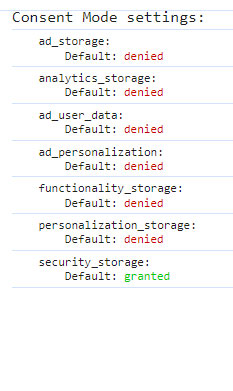
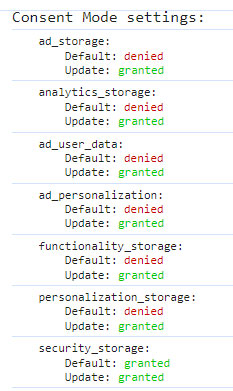
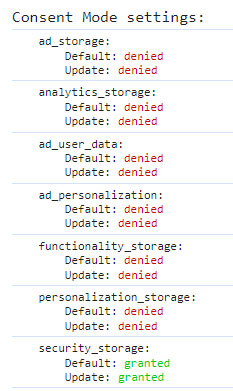
The output will reflect the current state of consent dependent on whether it is:
- Default - No consent choice yet made
- Granted - Consent has been Accepted
- Denied - Consent has been Rejected
As shown in the browser console output:

Consent Default
Consent Accepted
Consent Rejected
Test Google Consent with the Tag Manager Assistant
Login to your Google Account and visit Tag Assistant
(https://tagassistant.google.com/)
If this is your first time using the Tag Assistant you will need to 'Add domain' for the domain you wish to test.
Enter your domain name and click Connect.
- Click the domain from the list and the Tag Assistant will connect and start running.
A new browser window or tab will appear which will show the website you are testing.
(You can drag the Tag Assistant Connected window out of the way)
- In the main Tag Assistant window, you can click click the Continue button.
By default you will have 'Summary' selected so you need to click on the name of the website below (with the diamond shape next to it).
Providing your Tag ID has been found, you will see 'Output of GTM-XXXXXXX' and five tabs:
- Tags
- Variables
- Data Layer
- Consent
- Errors
- Click on that Consent tab.
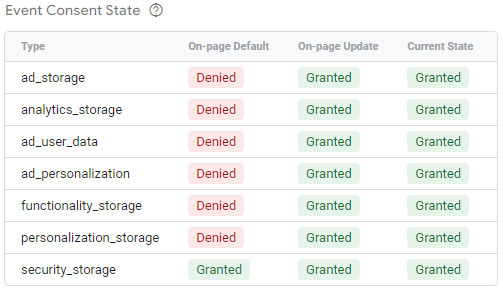
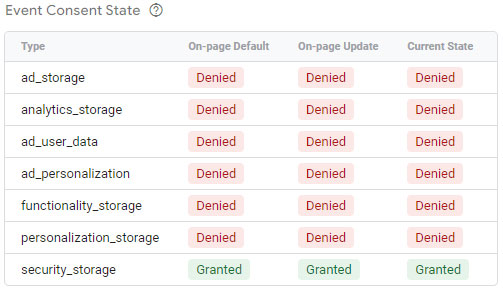
Here you will see the current state of consent based on:
- On-page Default
- On-page Update
- Current State
You will need to test all of the different event consent states by loading the website, checking the state, choose a consent option, delete the cookie, choose a different consent option, check the next consent state, etc.
You will be expecting to see the following:
Consent Default
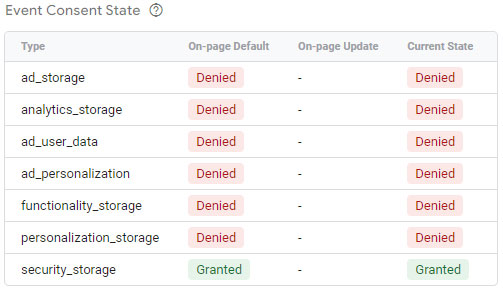
Consent Accepted
Consent Rejected
Cookies and Event Consent States
When testing within the Google Tag Assistant, you need to be able to test the different consent states by removing the cookie which grants or denies the consent state.
This is based on using Chrome but the principle is the same for all browsers.
- Open another tab and visit the website you're testing.
- Press F12 to open the browser console.
- Click on Application, Cookies and select the domain.
You will see a list of cookies which are active.
- Scroll down until you find the desired cookie - for Simple Cookie Consent this is scc_cookie_choice.
- Click on the cookie and press Delete - or right click and choose Delete from the list.
The cookie is now deleted.
- Switch back to your Tag Assistant testing tab/window and refresh.
In the main Tag Assistant [connected] tab/window you will see the refresh has created a new event and you can see the current consent states listed under the Consent tab.
You can use this process to test that all consent options work to reflect the desired consent states.
The different Simple Cookie Consent cookie values are:
- default
- accept
- reject
The value represents the consent choice will relates to the Google Consent states as appropriate.